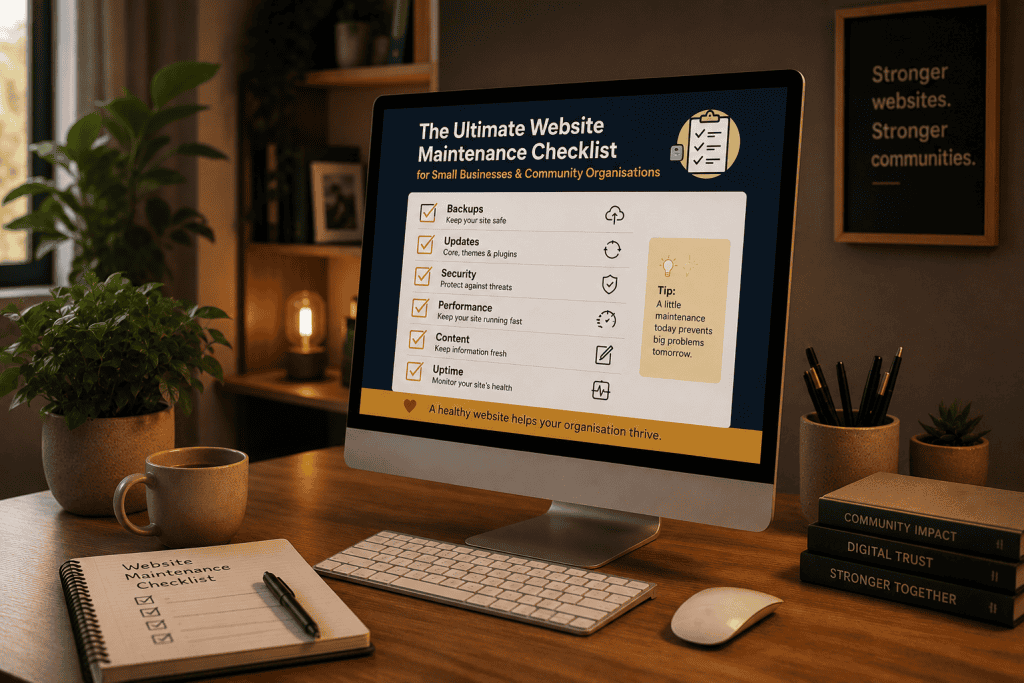
A practical guide to keeping your website secure, up to date and working for your organisation.
Whether you’re running a small business, managing a community organisation or coordinating a not-for-profit, your website is one of your most valuable assets.
It’s often the first impression people have of your organisation. It helps customers make enquiries, members stay informed, volunteers register, supporters donate, and communities connect.
The challenge is that many people think of a website as a project.
You build it, launch it, tick it off the list, and move on.
In reality, launching your website is just the beginning.
Like any important asset, your website needs regular care. Software needs updating, security threats evolve, search engines change, and your own organisation grows and changes over time. Left unattended, even a well-built website will gradually become slower, less secure and more difficult to manage.
The good news is that website maintenance isn’t particularly complicated. Most of it comes down to completing a series of simple tasks on a regular basis.
In this guide, I’ll walk you through the same maintenance process I recommend to clients. You’ll learn what to check, how often to check it, and some of the free tools that can make the job easier.
You don’t need to be a web developer to follow along. If you’re prepared to invest a little time each month, you’ll dramatically reduce the chances of running into unexpected problems.
And if you reach the end of this guide and decide that maintaining your website isn’t the best use of your time, that’s perfectly okay too. I’ll also explain how our Website Care Plans can take care of it all for you.
If a security warning, a news story or a worried phone call is what brought you here, you’re in the right place. This is exactly what proactive maintenance should look like, whether you handle it yourself or have someone do it for you.
Jump to a section:
- Why Website Maintenance Matters
- Before You Begin
- 1. Update Your Website Software
- 2. Make Sure Your Backups Are Actually Working
- 3. Test Every Contact Form
- 4. Check Your Website on Desktop and Mobile
- 5. Check Your Website Speed
- 6. Check for Broken Links
- 7. Review Website Security
- 8. Keep an Eye on Your Website Analytics
- 9. Read Your Website Like a First-Time Visitor
- When It Makes Sense to Outsource
Why Website Maintenance Matters
One of the biggest misconceptions I come across is the idea that a website is a one-off purchase.
An organisation invests in a new website, spends weeks refining the design and content, launches it with excitement, and then assumes the hard work is finished.
Unfortunately, that’s rarely the case.
I often compare a website to owning a car.
You wouldn’t expect to buy a new vehicle and never service it again. You’d change the oil, rotate the tyres, replace worn parts and keep an eye on anything that doesn’t sound quite right. Not because the car is broken, but because regular maintenance keeps it reliable and helps avoid costly repairs later.
Your website deserves the same attention.
Every month, dozens of small updates are released for WordPress, plugins, themes and hosting platforms. Some improve performance, others fix bugs, and many address newly discovered security vulnerabilities.
At the same time, your organisation continues to evolve.
Your team changes. You launch new services or programs. Events come and go. Phone numbers, opening hours and pricing are updated. Staff photos become outdated. Testimonials become stale. Before long, your website no longer reflects the organisation it represents.
None of these issues are particularly serious on their own.
The problem is that they accumulate.
A missed software update becomes a security risk. A broken contact form quietly stops receiving enquiries. An expired SSL certificate causes browser warnings. A website that once loaded quickly becomes frustratingly slow.
These problems rarely happen overnight. They’re usually the result of months, or even years, of small maintenance tasks being overlooked.
A little time spent each month can prevent most of them.
If you’re relying on grant funding, a funder checking your website before a site visit will notice if it looks neglected. If you report to a board or committee, someone will eventually ask why it hasn’t been touched in years. Neither is a conversation you want to have on the back foot.
Regular website maintenance helps you:
- Keep your website secure.
- Reduce the risk of downtime.
- Ensure enquiries and online forms continue to work.
- Improve loading speed and user experience.
- Maintain compatibility with modern browsers and mobile devices.
- Protect your visibility in search engines.
- Extend the life of your website investment.
- Build trust with customers, members, volunteers and supporters.
The goal isn’t to spend hours tinkering with your website every week.
The goal is to spend a little time maintaining it so you don’t have to spend a lot of time fixing it.
Before You Begin
Before we jump into the checklist, it’s worth spending five minutes getting yourself organised.
You don’t need any specialist technical skills, but there are a few things you’ll want to have handy before you start.
✔ Make sure you have administrator access
It sounds obvious, but I’ve worked with plenty of organisations that don’t actually know who has access to their website.
Make sure you know:
- Your website login details.
- Who hosts your website.
- Where your domain name is registered.
- Who to contact if something goes wrong.
If you’re relying on a previous employee or a web developer who disappeared years ago, now is the time to sort that out, not when your website has gone offline.
If you need a reminder, I have an article on how to Create A New Admin User in WordPress.
✔ Know how your website is backed up
Before making any updates, it’s important to know that your website can be restored if something goes wrong.
Many quality hosting providers include automated daily backups, while others rely on backup plugins or external services.
The key question isn’t:
“Do I have backups?”
It’s:
“Could I restore my website if I needed to?”
Hopefully you’ll never need to, but it’s worth knowing the answer.
✔ Schedule time in your calendar
Website maintenance works best when it becomes a habit.
I generally recommend blocking out an hour each month, perhaps on the first Monday morning or the last Friday afternoon, and working through the checklist.
It’s much easier to spend one hour each month than it is to spend an entire weekend recovering from a hacked or broken website.
💡 Toolkit Tip

Treat your website maintenance like you would any other important appointment. If it's left until "when things quieten down", it probably won't happen. A recurring calendar reminder is one of the simplest ways to stay on top of it.
Monthly Website Maintenance Checklist
No website is completely “set and forget”.
The good news is that you don’t need to spend hours every week maintaining it. Most organisations can keep their website in excellent condition by setting aside around an hour each month to work through a simple checklist.
Some months you’ll only spend 20 minutes. Other months you might need a little longer if there are larger software updates or content changes.
The important thing isn’t how long it takes. It’s the consistency.
Let’s start with one of the most important tasks.
1. Update Your Website Software
Why it matters
Most of the examples in this guide reference WordPress, since that’s what the majority of our clients use, but the same principles apply if you’re on Joomla, Squarespace, Shopify or something else. Only the exact menus and button locations change.
If your website runs on WordPress, it relies on several different pieces of software working together.
This typically includes:
- WordPress itself
- Your website theme
- Plugins that add extra functionality
- Sometimes page builders such as Beaver Builder or Elementor
The developers behind these products regularly release updates.
Some introduce new features, but many fix bugs, improve compatibility or patch newly discovered security vulnerabilities.
One of the most common ways websites become compromised is simply because software hasn’t been updated.
Keeping your website current is one of the simplest and most effective ways to improve security and reliability.
How to do it
Log into your website dashboard and check for available updates.
Rather than clicking “Update All” immediately, take a moment to review what’s changing.
I generally recommend updating in this order:
- Take or confirm a backup.
- Update WordPress (if required).
- Update plugins.
- Update your theme.
- Visit your website and test that everything still works.
Pay particular attention to:
- Your homepage
- Contact forms
- Navigation menus
- Online bookings
- Donation pages
- Member portals
- Shopping carts or checkout pages
If everything looks normal, you’re done for another month.
What to watch out for
Although most updates install without issue, occasionally one plugin doesn’t play nicely with another.
If you notice something unusual after an update, don’t panic.
Because you’ve confirmed your backup beforehand, you have a safe way to restore the website if needed.
If your website hasn’t been updated for a year or more, avoid updating everything at once. Large version jumps are more likely to expose compatibility issues.
💡 Toolkit Tip

Never perform major website updates the night before a big event, fundraiser, product launch or marketing campaign. If something unexpected happens, you'll want time to test everything properly. I usually recommend scheduling updates during business hours, early in the week, when support from your hosting provider or plugin developers is easiest to access.
2. Make Sure Your Backups Are Actually Working
Why it matters
Ask most website owners whether they have backups and the answer is usually “I think so.”
That’s not enough.
A backup only has value if it can actually be restored.
Think of it like insurance. You hope you’ll never need it, but if disaster strikes, you’ll be very glad it’s there.
Backups protect you from:
- Failed software updates
- Accidental changes
- Hacking attempts
- Hosting failures
- Human error
Without a reliable backup, even a relatively small issue can become a stressful and expensive exercise.
How to do it
First, understand how your website is backed up.
Questions worth asking include:
- Does my hosting provider create automatic backups?
- How often are they taken?
- How long are they retained?
- Can I restore them myself?
- Are backups stored off-site?
If you’re relying on a backup plugin, check that recent backups have actually completed successfully.
You don’t necessarily need to restore your website every month, but you should know how the process works before you’re in an emergency.
What to watch out for
One of the biggest misconceptions is assuming your hosting company automatically handles everything.
Some hosting providers include excellent backup systems.
Others don’t.
Likewise, some backup plugins quietly stop working if storage fills up or settings change.
A backup that failed three months ago won’t help you today.
💡 Toolkit Tip

I like to think of backups as parachutes. You don't inspect them on the way down. Spend a few minutes understanding your backup process while everything is working normally. Future you will be very grateful.
3. Test Every Contact Form
Why it matters
This is probably the simplest task on the checklist, yet it’s also one of the most overlooked.
I’ve seen organisations unknowingly miss enquiries for weeks because a contact form stopped sending emails after a hosting change or software update.
The website looked perfectly normal.
Visitors filled in the form.
Nothing arrived.
The organisation had no idea until someone picked up the phone and said, “I’ve filled out your form twice.”
If your website includes enquiry forms, event registrations, volunteer applications, membership forms or donation forms, they deserve regular testing.
How to do it
Complete every important form on your website exactly as a visitor would.
Then check:
- Did the confirmation message appear?
- Did the email arrive?
- Was it delivered to the correct inbox?
- Did any automated confirmation emails send successfully?
- Were attachments received if applicable?
Don’t just test your main contact page.
Think about every form someone could use to interact with your organisation.
What to watch out for
Email delivery has become more complex over recent years.
Sometimes the form works perfectly, but the email is rejected or marked as spam because of changes to email security settings.
If you notice inconsistent delivery, it’s worth investigating before enquiries start going missing.
💡 Toolkit Tip

Every time you make changes to your website, especially updates involving forms or email settings, submit a quick test enquiry afterwards. It only takes a minute and can save weeks of lost opportunities.
4. Check Your Website on Desktop and Mobile
Why it matters
Most people don’t visit your website the same way you do.
As the owner or administrator, you’re probably viewing it on a large computer screen while logged into WordPress. Your visitors might be looking at it on a phone while standing outside your office, sitting in a café or driving between appointments.
That’s why it’s important to regularly experience your website as they do.
A page that looks perfect on your desktop might have buttons that are difficult to tap on a mobile phone, text that overlaps, or images that take far too long to load on a slower connection.
These small frustrations can be enough for someone to leave your website and look elsewhere.
How to do it
Once a month, spend five minutes browsing your own website as though you’ve never seen it before.
Check it on:
- A desktop computer
- A mobile phone
- A tablet, if possible
Visit your key pages, such as:
- Home
- About
- Services or Programs
- Events
- Contact
- Donation or Booking pages
- Member resources
Ask yourself:
- Does everything display correctly?
- Is the text easy to read?
- Are buttons large enough to tap?
- Do images load properly?
- Can I easily find the information I’m looking for?
If something feels awkward, there’s a good chance your visitors feel the same way.
What to watch out for
Sometimes website administrators only notice problems after logging in because WordPress displays additional menus and editing tools.
Always check your website while logged out or in a private browser window so you’re seeing the same experience as everyone else.
💡 Toolkit Tip

Every few months, ask someone who has never used your website before to complete a simple task, such as finding your phone number or registering for an event. Watching someone use your website for the first time is one of the quickest ways to identify opportunities for improvement.
5. Check Your Website Speed
Why it matters
Website speed isn’t just about convenience.
A slow website can affect how people perceive your organisation, how long they stay on your pages and even how well your website performs in search engines.
Fortunately, you don’t need a blazing-fast website that scores 100 out of 100 on every performance test.
What matters most is that your website feels responsive and continues to improve over time.
How to do it
Once a month, run your homepage through a free speed testing tool such as:
- Google PageSpeed Insights
- GTmetrix
Pay attention to:
- Overall loading speed
- Large changes from previous months
- New warnings or recommendations
If your website suddenly becomes much slower than it used to be, that’s worth investigating.
What to watch out for
Many people become obsessed with chasing perfect performance scores.
In reality, those tools are designed for developers and often recommend technical improvements that may have very little impact on your visitors.
Focus on trends rather than perfection.
A website that loads in two seconds and scores 82 isn’t necessarily worse than one that loads in 1.8 seconds and scores 98.
💡 Toolkit Tip

One of the biggest causes of slow websites is oversized images. Before uploading photos, resize them to the approximate dimensions they'll be displayed at and save them in modern formats such as WebP where possible. It's one of the easiest performance improvements you can make.
6. Check for Broken Links
Why it matters
Websites evolve over time.
Pages are renamed.
Events finish.
Documents are replaced.
External organisations redesign their own websites.
Eventually, links that once worked begin returning “Page Not Found” errors.
Broken links create frustration for visitors and can make an otherwise professional website feel neglected.
How to do it
Use a website crawler or broken link checker to scan your website every few months.
Pay particular attention to links that point to:
- Downloadable documents
- External organisations
- Booking systems
- Online forms
- News articles
- Event pages
If a page has been intentionally removed, consider redirecting visitors to a more relevant page instead of leaving them at a dead end.
What to watch out for
Don’t just look for internal links.
External links break surprisingly often, especially if you regularly link to partner organisations, funding bodies or government resources.
💡 Toolkit Tip

If your organisation regularly runs events, avoid deleting old event pages. Instead, archive them and redirect visitors to your upcoming events page. It's a better experience for users and preserves any search engine value those pages have built over time.
7. Review Website Security
Why it matters
Website security isn’t just about protecting your website.
It’s about protecting the people who trust it.
Whether someone is submitting an enquiry, making a donation, registering for an event or purchasing a product, they expect your website to be secure.
Fortunately, basic website security doesn’t have to be complicated.
Small, regular checks dramatically reduce the likelihood of problems.
Most website compromises don’t start with WordPress itself. They start with an outdated plugin or theme, which is why keeping everything updated (see Task 1) is your single biggest security lever. When attackers do get in, they’ll often plant something called a webshell: a hidden file that gives them ongoing remote access, even after the vulnerability that let them in has been patched. Regular checks help you catch this kind of thing early, rather than months later.
How to do it
Once a month, review the basics.
Check for:
- Unusual administrator accounts
- Failed login attempts
- Security plugin alerts
- Expired SSL certificates
- Available security updates
- Unfamiliar or unexpected files appearing in your website’s file system
A free security plugin such as Wordfence, or an online scanner like Sucuri SiteCheck, can automate most of this and alert you if something looks wrong. If you’re managing several websites, a paid tool such as MalCare can make monitoring easier.
Also ask yourself:
- Does every administrator still need access?
- Have former staff or committee members been removed?
- Are strong passwords being used?
Good security often comes down to good housekeeping.
What to watch out for
Many organisations accumulate administrator accounts over the years.
A volunteer helps build the website.
A contractor finishes a project.
A staff member leaves.
Yet their login remains active.
Review user accounts regularly and remove access that is no longer required.
It’s one of the simplest ways to improve security.
If you ever suspect your website has been compromised, ASD’s Australian Cyber Security Centre accepts reports at cyber.gov.au/report, and it’s worth doing even if you’re not certain.
💡 Toolkit Tip

I recommend giving people the lowest level of access they need to do their job. Not everyone needs to be an Administrator. WordPress includes several user roles, and using them appropriately reduces the risk of accidental changes or security issues.
8. Keep an Eye on Your Website Analytics
Why it matters
Your website analytics tell a story.
They’re not just about how many people visited your website last month. They can help you understand how people are finding you, what content they’re interested in and whether your website is achieving its purpose.
You don’t need to become a data analyst, but spending a few minutes looking at your website’s performance each month can help you spot issues before they become bigger problems.
For example, if website traffic suddenly drops, it could indicate a technical issue, changes to your search rankings or even a tracking problem.
How to do it
Open your analytics platform, such as Google Analytics 4, and spend a few minutes looking at the basics.
Ask yourself:
- Has website traffic remained reasonably consistent?
- Which pages are attracting the most visitors?
- Are people finding the information they need?
- Are enquiries, bookings or donations still being generated?
- Has anything changed dramatically since last month?
You don’t need to analyse every chart or report. You’re simply looking for anything that feels unusual.
What to watch out for
It’s easy to get distracted by numbers that don’t really matter.
Instead of chasing more visitors, focus on whether your website is helping your organisation achieve its goals.
For one organisation, success might be more enquiries.
For another, it could be volunteer registrations, event bookings, online sales or donations.
Analytics are most useful when they’re connected to outcomes, not just page views.
💡 Toolkit Tip

Rather than checking analytics every day, I prefer looking at trends month by month. Day-to-day numbers naturally fluctuate, but longer-term trends provide a much clearer picture of how your website is performing.
9. Read Your Website Like a First-Time Visitor
Why it matters
After working on a website for months or years, it’s easy to become “website blind.”
You know where everything is.
You know what your organisation does.
You know what every acronym means.
Your visitors don’t.
One of the most valuable maintenance tasks you can perform is stepping into their shoes.
How to do it
Imagine you’ve never visited your website before.
Starting on your homepage, ask yourself:
- Within 10 seconds, is it obvious what we do?
- Is it clear who we help?
- Can I easily find contact information?
- Is there a clear next step?
- Would I trust this organisation based on what I’m seeing?
As you browse, keep a notebook handy.
Write down anything that feels confusing, outdated or unnecessarily difficult.
Those notes often become your next round of website improvements.
What to watch out for
Remember that your visitors don’t read every word.
They scan.
If your pages are filled with long paragraphs, outdated information or multiple competing calls to action, they may struggle to find what they’re looking for.
Sometimes the biggest improvement isn’t adding something new.
It’s removing something that no longer serves a purpose.
💡 Toolkit Tip

Every six months, ask someone outside your organisation to spend five minutes using your website while you watch. Don't explain anything or offer help. Simply observe. You'll learn more from five minutes of real user behaviour than hours spent debating design decisions around a meeting table.
Website Maintenance Doesn’t Need to Be Complicated
If you’ve made it this far, you’ll probably have noticed something.
None of these individual tasks are especially difficult.
Most can be completed in just a few minutes.
The challenge is consistency.
When you’re busy running a business, coordinating volunteers, delivering services or planning your next community event, it’s easy for website maintenance to slip down the priority list.
One missed month becomes three.
Three months becomes a year.
Eventually, you’re faced with outdated software, broken forms, security warnings or a website that no longer reflects your organisation.
That’s not because you’ve done anything wrong.
It’s simply because you’ve been focused on everything else your organisation depends on.
The purpose of this guide isn’t to convince you that website maintenance is difficult.
It’s to show you what’s involved so you can make an informed decision.
If you enjoy looking after your own website, fantastic.
Set aside an hour each month, work through this checklist and stay consistent. A little preventative maintenance goes a long way. Or read this article on What is a website health check and when should I do one?
If, however, you’ve read this guide and thought, “I know I should do this, but I also know it probably won’t happen,” you’re certainly not alone.
When It Makes Sense to Outsource
At Regional Business Toolkit, we work with businesses, community organisations and not-for-profits across regional and rural Victoria.
Many of our clients are more than capable of maintaining their own websites.
They simply have more valuable ways to spend their time.
Our Website Care Plans are designed to take the routine maintenance off your plate.
That includes things like:
- Regular software updates
- Security monitoring
- Website backups
- Performance checks
- Technical support
- Small content changes
- Ongoing advice and recommendations
Rather than wondering whether your website has been updated or whether your contact forms are still working, you can focus on running your organisation, knowing your website is being looked after.
Think of it as having an IT department for your website, without the overhead of employing one.
“Caolan from Regional Business Toolkit took my old under performing website and turned it into something that is easy to add content and track performance. His industry knowledge is great, Caolan has great knowledge of current Apps to enable greater performance within the business. We continually use Regional Business Toolkit to maintain our exposure across the tech, social society. Caolan is a great asset to our business and community.”
— Stuart Coward
If any of this feels like more than you want to take on yourself, contact me and tell me what’s going on with your website. I’ll let you know honestly whether a Care Plan makes sense for you, no pressure either way.
Final Thoughts
Your website is rarely the most urgent part of your day.
But it is one of the most important.
For many people, it’s their very first interaction with your organisation.
Looking after it doesn’t require hours every week or specialist technical knowledge.
It simply requires a little consistency.
Whether you decide to maintain your website yourself or partner with someone to do it for you, the important thing is that it doesn’t become something you only think about when it stops working.
Because the best website maintenance is the kind nobody ever notices.
Your website simply continues doing its job, quietly supporting your organisation, day after day.